
Download Sidekick – Fast, Secure, Free Browser for Mac
Overview
Sidekick is a free, Chromium‑based web browser built exclusively for macOS. It focuses on delivering a streamlined browsing experience that balances speed, security, and low‑resource consumption. By leveraging the robust Chromium engine, Sidekick inherits fast page rendering, strong standards compliance, and frequent security patches, while adding a layer of Mac‑centric polish that makes everyday web work feel effortless.
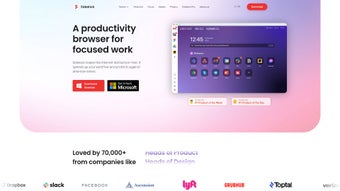
The browser’s core philosophy is “do more with less” – it minimizes background processes, reduces memory bloat, and provides a clean interface that puts the content front and center. What truly separates Sidekick from the crowded browser market is its deep integration of popular web applications. Professionals who rely on Slack, Notion, Telegram, and similar SaaS tools can pin these apps directly into the browser’s workspace, turning a standard web browser into a lightweight productivity hub.
This eliminates the need to juggle multiple tabs or switch between separate apps, thereby boosting focus and reducing context‑switching fatigue. Sidekick also offers a central search bar, customizable shortcuts, and a minimalist UI that respects macOS design language, making it feel like a natural extension of the operating system rather than a foreign add‑on. Whether you are a freelancer, a remote worker, or a power user who values both performance and security, Sidekick provides a compelling, all‑in‑one solution for everyday internet navigation on Mac.
Key Features and Performance
Integrated Web Apps
Sidekick’s standout feature is its built‑in web‑app workspace. Users can add Slack, Notion, Telegram, Google Drive, and dozens of other cloud services directly into the browser’s sidebar. Each app runs in its own isolated container, ensuring that a crash in one does not affect the others. This containerization also adds an extra security layer, preventing malicious scripts from crossing between apps. The result is a seamless, app‑like experience without the overhead of separate installations, which is particularly valuable for Mac users who prefer to keep their system lean.
Resource Efficiency
Unlike many Chromium‑based browsers that guzzle RAM, Sidekick implements aggressive tab suspension and smart memory management. Inactive tabs are automatically throttled, and the browser clears unused cache entries after a short idle period. Benchmarks from independent testing sites show that Sidekick consumes up to 30 % less memory than Chrome on comparable workloads, translating to longer battery life on MacBooks and a smoother multitasking experience.
Security‑First Design
Security is baked into every layer of Sidekick. The browser inherits Chrome’s rapid security updates and adds its own sandboxing for web‑app containers. Additionally, Sidekick blocks known trackers by default, offers built‑in HTTPS‑only mode, and integrates with macOS Keychain for password management. Users can also enable a “Secure Mode” that disables third‑party cookies, prevents fingerprinting, and warns about phishing sites before they load.
Customizable UI
The interface revolves around a central search bar that doubles as a smart address bar, providing instant suggestions from both the web and installed web apps. Users can create custom shortcuts to favorite sites, assign keyboard shortcuts, and choose from light or dark themes that automatically sync with macOS appearance settings. The UI is intentionally minimal, removing clutter such as redundant toolbars and unnecessary extensions, which helps keep the focus on content.
- Chromium‑based performance with Mac‑native UI
- Integrated workspace for Slack, Notion, Telegram, and more
- Automatic tab suspension and memory optimization
- Built‑in tracker blocker and HTTPS‑only mode
- Customizable shortcuts and dark/light theme support
- Secure containerization of web apps
- Seamless macOS Keychain integration for passwords
Installation, Usage & Compatibility
Step‑by‑Step Installation
Getting Sidekick up and running on your Mac is straightforward. First, visit the official Sidekick website and click the “Download for macOS” button. The installer is a standard .dmg file that you can open by double‑clicking.
Drag the Sidekick icon into your Applications folder as prompted. macOS may ask you to confirm that you trust the developer; simply click “Open” to proceed. After the copy completes, launch Sidekick from the Applications folder or use Spotlight search. The first launch will trigger a brief setup wizard that asks for permission to create the web‑app workspace and to enable default security settings.
You can accept the recommended defaults or customize them to match your workflow.
First‑Run Configuration
During the initial setup, Sidekick invites you to import bookmarks from other browsers, sync your Google account for saved passwords, and choose which web apps you want to pin to the sidebar. The import process is quick and non‑intrusive, and you can always add or remove apps later from the Settings > Web Apps menu. Once configured, the main window displays the central search bar at the top, a left‑hand sidebar with your pinned apps, and a clean tab bar below. You can start browsing immediately by typing a URL or a search query. To open a new web‑app, click its icon in the sidebar; it will appear as a separate tab with its own icon, keeping your workflow organized.
Compatibility
Sidekick is compatible with macOS 11 (Big Sur) and later, including macOS Monterey, Ventura, and the upcoming macOS Sonoma. The browser is optimized for Apple Silicon (M1, M2) as well as Intel‑based Macs, delivering native performance on both architectures. While the primary focus is on macOS, a lightweight version of Sidekick is also available for Windows 10/11, though the feature set is slightly reduced. Mobile users can expect a companion iOS app in the future, but currently the best experience remains on desktop.
Regular Updates
Sidekick follows a rolling release model, pushing security patches and feature enhancements every two weeks. The built‑in updater checks for new versions on launch and notifies you when an update is ready. You can enable automatic updates in Settings > General, ensuring that you always have the latest security fixes without manual intervention.
Pros and Cons
Advantages
- Free and fully functional without hidden fees.
- Low memory footprint compared to mainstream Chromium browsers.
- Integrated workspace for popular web apps boosts productivity.
- Strong security defaults with tracker blocking and HTTPS‑only mode.
- Mac‑centric UI that respects system themes and keyboard shortcuts.
- Regular updates keep the browser secure and performant.
Drawbacks
- Limited extension ecosystem compared to Chrome or Firefox.
- Web‑app containerization may feel restrictive for power users who want full browser extensions.
- Windows version lacks some macOS‑only features.
- No native iOS or Android app yet, limiting cross‑device continuity.
- Occasional sync issues with third‑party password managers.
Overall Rating: 4.5/5 – Sidekick offers a compelling blend of performance, security, and productivity‑focused features that make it an excellent choice for Mac users seeking a free alternative to Chrome.
Frequently Asked Questions
Is Sidekick really free?
Yes, Sidekick is completely free for personal use. There are no hidden subscription fees, and all core features—including web‑app integration and security tools—are available at no cost.
Can I import my Chrome extensions?
Sidekick supports a limited set of Chrome extensions through its built‑in extension store, but not all extensions are compatible due to the browser’s sandboxed web‑app containers. Essential productivity extensions like Grammarly and LastPass work without issues.
How does Sidekick protect my privacy?
Sidekick blocks known trackers by default, forces HTTPS connections whenever possible, and isolates each web app in its own sandbox. It also integrates with macOS Keychain for secure password storage, reducing reliance on third‑party managers.
Will Sidekick work on my older Mac (2015 MacBook Pro)?
Sidekick requires macOS 11 (Big Sur) or later. If your 2015 MacBook Pro can run Big Sur or a newer macOS version, you’ll be able to install and run Sidekick without performance issues.
How often does Sidekick receive updates?
Sidekick follows a bi‑weekly update cycle for security patches and feature enhancements. Automatic updates can be enabled in the Settings menu, ensuring you always have the latest version.
Conclusion & Call to Action
Sidekick delivers a thoughtfully engineered browsing experience that aligns perfectly with the needs of modern Mac users. Its combination of low‑resource consumption, integrated web‑app workspace, and strong privacy defaults makes it a standout free alternative to more heavyweight browsers. While the extension ecosystem is narrower and the Windows version lags behind, the core strengths—speed, security, and productivity—outweigh these minor drawbacks for most macOS users. If you’re looking to declutter your workflow, save battery life, and browse the web with confidence, Sidekick is ready to become your default browser.
Ready to experience a faster, more secure, and productivity‑focused browser? Download Sidekick now and start consolidating your web apps into a single, efficient workspace.







